跳至內容

antony@notes:~/suse$ cat "Registering-SUSE-Liberty-Linux-8-Clients.md"

Registering SUSE Liberty Linux 8 Clients

2025-02-18· SUSE ·SUSE Manager ·SUSE Liberty Linux

Preface

本篇文章會介紹,如何成功將 SUSE Liberty Linux Client 註冊到 SUSE Manager Server

可以透過點擊展開以下目錄,選擇想看的內容,跳轉至特定章節

1. 注意事項

  1. SUSE Liberty Linux clients 指的就是將 Red Hat Enterprise Linux 或是 CentOS 系統的 Packages Repository 換成 SUSE Liberty Linux 的套件儲存庫。

SUSE Liberty Linux clients 有時候也被稱為以下 4 種名稱

  • SUSE Linux Enterprise Server with Expanded Support (SLESES)
  • Liberty
  • RES
  • Red Hat Expanded Support.
  1. SUSE Liberty Linux software channels 僅提供套件的更新,不提供套件本身
  2. 要註冊 SUSE Liberty Linux Client,需要在 SUSE Manager Server 新增 SUSE Liberty Linux Product 以建立必要的基本頻道,然後將任何必需的 Red Hat 或 CentOS 套件匯入為自訂子頻道。
  3. 必須直接從 Red Hat 或 CentOS 獲得 initial packages ( 初始套件 ),然後才能套用由 SUSE Liberty Linux 軟體頻道提供的更新。

2. 在 SUSE Manager Server 新增 Software Channels

2.1. 系統要求

  • SUSE Manager Server 的 /var/spacewalk 目錄區剩餘空間量,必須有 300 G 以上的剩餘空間

2.2. 注意事項

SUSE Liberty Linux 的某些必需套件包含在 Red Hat Enterprise Linux 或 CentOS installation media 中,在註冊 SUSE Liberty Linux 客戶端之前,您必須先安裝這些套件。

  • SUSE Liberty Linux 產品由 SUSE Custom Center 提供,這也包括客戶端工具套件。
  • 在將 SUSE Liberty Linux 客戶端註冊到 SUSE Manager Server 之前,您需要添加所需的 software channels 並同步它們。
  • 您需要選擇兩組不同的通道,一組是 SUSE Liberty Linux,另一組是 Client Tools.。
  • 需要與正確的 SUSE Liberty Linux channels 關聯的 activation key。

2.3. 開始新增 Software Channels

以下 WebUI 和 CLI 的操作步驟選擇其中一種執行即可

2.3.1 使用 WebUI 操作步驟

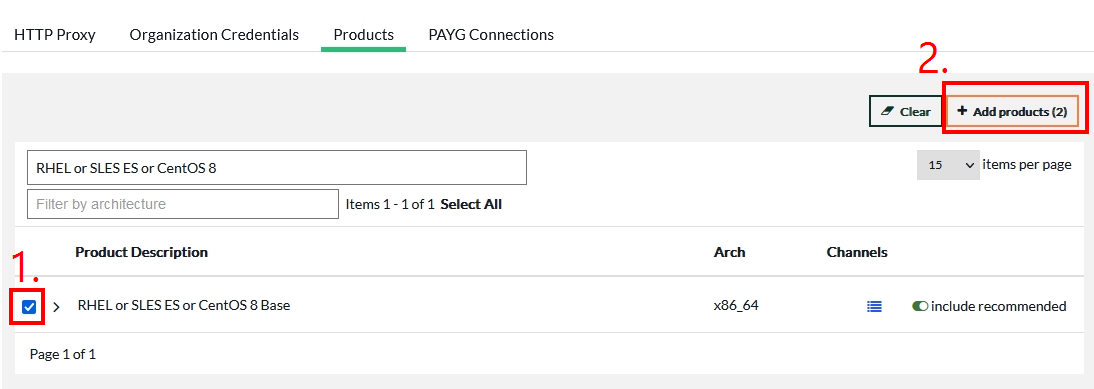
  1. 勾選要加入的 SUSE Liberty Linux (版本)
  2. 點擊 “Add product” ,然後等待同步完成

image

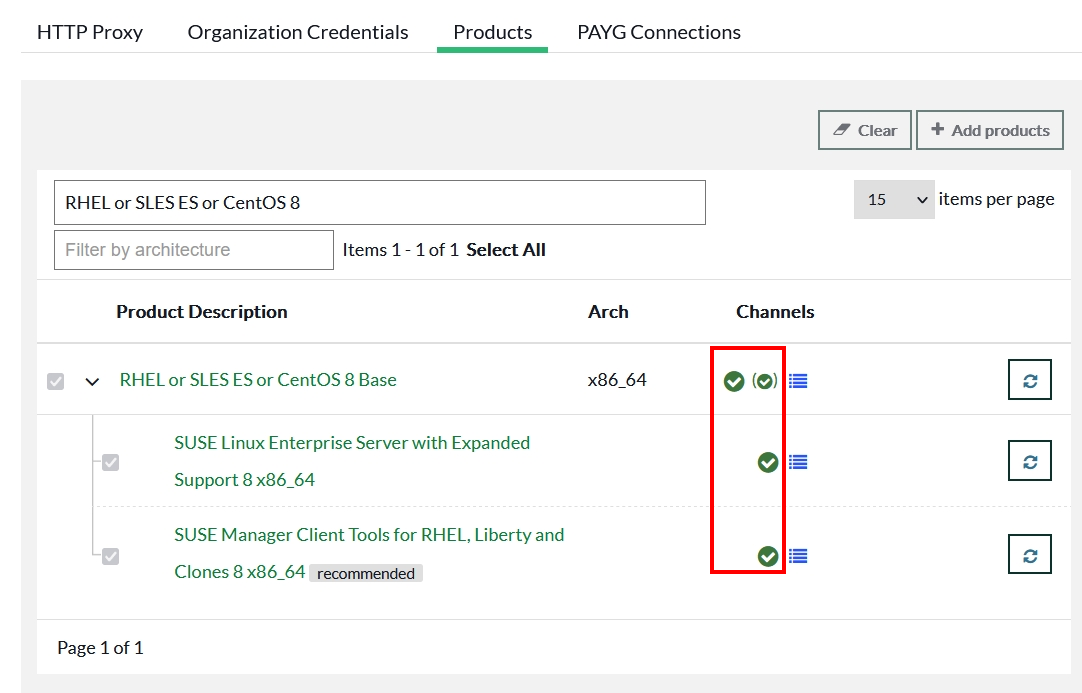
  1. 確認同步完成

在 Channels 欄位呈現綠勾勾的圖示,代表完成同步

image

2.3.2. 使用 CLI 操作步驟

連線至 SUSE Manager Server,並使用具有系統管理員權限的使用者帳號執行以下命令

$ sudo mgr-sync add channel rhel8-pool-x86_64

輸入 SUSE Manager 管理員的帳號密碼

螢幕輸出 :

Please enter the credentials of SUSE Manager Administrator.
Login: admin
Password:
Channel 'rhel8-pool-x86_64' has already been added
Scheduling reposync for following channels:
- rhel8-pool-x86_64

2.4. SUSE Liberty Linux 在 SUSE Manager 上的資訊

下表是 SUSE Liberty Linux 每個版本對應的 Product 名稱 :

OS VersionProduct Name
SUSE Liberty Linux 7SUSE Linux Enterprise Server with Expanded Support 7 x86_64
SUSE Liberty Linux 8RHEL or SLES ES or CentOS 8 Base x86_64
SUSE Liberty Linux 9RHEL and Liberty 9 Base x86_64

下表是 SUSE Liberty Linux 每個版本對應的 Base Channel 和 Client Tools Channel :

SUSE Liberty LinuxBase ChannelTools Channel
7RHEL Expanded Support 7RES7-SUSE-Manager-Tools x86_64
8RHEL or SLES ES or CentOS 8 BaseRES8-Manager-Tools-Pool for x86_64 and RES8-Manager-Tools-Updates for x86_64
9RHEL and Liberty 9 BaseEL9-Manager-Tools-Pool for x86_64 and EL9-Manager-Tools-Updates for x86_64

2.5. 檢視 Product 下載過程

以 SUSE Liberty Linux 8 為例,這個 Product 有 5 個必要的 Channel

res-8-updates-x86_64
res-as-8-updates-x86_64
res-cb-8-updates-x86_64
res8-manager-tools-pool-x86_64
res8-manager-tools-updates-x86_64

2.5.1. 檢視下載 res-8-updates-x86_64 Channel 的 log 資訊

$ sudo tail -f /var/log/rhn/reposync/res-8-updates-x86_64.log

螢幕輸出應該要看到類似以下資訊 :

2023/08/16 11:17:30 +08:00 Command: ['/usr/bin/spacewalk-repo-sync', '--channel', 'res-8-updates-x86_64', '--type', 'yum', '--non-interactive']
2023/08/16 11:17:30 +08:00 Sync of channel started.
2023/08/16 11:17:49 +08:00 Repo URL: https://updates.suse.com/SUSE/Updates/RES/8/x86_64/update/?<token>
2023/08/16 11:17:49 +08:00     Packages in repo:             16052
2023/08/16 11:18:33 +08:00     Packages already synced:          6
2023/08/16 11:18:33 +08:00     Packages to sync:             16046
2023/08/16 11:18:35 +08:00     New packages to download:     16046
2023/08/16 11:18:35 +08:00   Downloading packages:
2023/08/16 11:18:36 +08:00     1/16046 : ModemManager-1.10.4-1.el8.x86_64.rpm
...中間省略
2023/11/07 10:03:43 +08:00   Downloading packages:
2023/11/07 10:03:46 +08:00     1/5 : binutils-devel-2.30-119.el8_8.2.x86_64.rpm
2023/11/07 10:03:46 +08:00     2/5 : sos-audit-4.6.0-5.el8.noarch.rpm
2023/11/07 10:03:47 +08:00     3/5 : sos-4.6.0-5.el8.noarch.rpm
2023/11/07 10:03:48 +08:00     4/5 : binutils-2.30-119.el8_8.2.x86_64.rpm
2023/11/07 10:03:51 +08:00     5/5 : binutils-devel-2.30-119.el8_8.2.i686.rpm
2023/11/07 10:03:51 +08:00 Importing packages started.
2023/11/07 10:03:51 +08:00
2023/11/07 10:03:51 +08:00   Importing packages to DB:
2023/11/07 10:04:08 +08:00   Package batch #1 of 1 completed...
2023/11/07 10:04:08 +08:00 Importing packages finished.
2023/11/07 10:04:08 +08:00
2023/11/07 10:04:08 +08:00   Linking packages to the channel.
2023/11/07 10:04:09 +08:00     5 packages linked
2023/11/07 10:04:10 +08:00
2023/11/07 10:04:10 +08:00   Patches in repo: 2193.
2023/11/07 10:04:20 +08:00 Add Patch RHSA-2023:6236
2023/11/07 10:04:20 +08:00 Add Patch RHBA-2023:6293
2023/11/07 10:04:20 +08:00     Syncing 2 new patch(es) to channel.
2023/11/07 10:04:23 +08:00   Regenerating bootstrap repositories.
2023/11/07 10:04:24 +08:00 Sync completed.
  • 下載完成後會在 log 檔中看到 Sync completed. 代表完成

2.5.2.檢視下載 其他 Channel 的 log 資訊

$ sudo tail -f /var/log/rhn/reposync/res-as-8-updates-x86_64.log

$ sudo tail -f /var/log/rhn/reposync/res-cb-8-updates-x86_64.log
    
$ sudo tail -f /var/log/rhn/reposync/res8-manager-tools-pool-x86_64.log

$ sudo tail -f /var/log/rhn/reposync/res8-manager-tools-updates-x86_64.log

2.6. Trouble Shooting

2.6.1. 透過 CLI 重新同步 Channel

$ sudo mgr-sync sync channel <channel_name>

2.6.2. 在 SCC 有新增 Product 的訂閱,但是 SUSE Manager Server 沒有認到

Refresh the local copy of products, channels, and subscriptions

$ sudo mgr-sync -d 3 refresh

2.6.3. mgr-sync log 檔案所在的位置

3. 新增 Base Media

3.1. 注意事項

  1. SUSE Liberty Linux 的 base channel 沒有任何套件,因為 SUSE 沒有提供 Red Hat Enterprise Linux 或 CentOS 的 base media。
  2. 需要從 Red Hat 或 CentOS 取得 base media,並將其新增為 SUSE Liberty Linux parent channel 的 child channel。為了確保有需要的所有套件,請使用完整的 DVD image,而不是最小或 JeOS image。
  3. 可以使用 SUSE Manager custom channels 來設定 Red Hat Enterprise Linux 或 CentOS 的 media。base media 上的所有套件都必須 mirror 到 child channel。

3.2. 建立 Custom Channels

  1. 使用 SUSE Manager Server 管理員帳號登入
$ spacecmd -- login <admin_name>
> enter admin password
  1. 建立 CentOS 8 BaseOS Custom Channel
$ spacecmd -- softwarechannel_create -n "Centos8 Media BaseOS" -l centos8-media-baseos -p rhel8-pool-x86_64 -a x86_64
  1. 建立 CentOS 8 AppStream Custom Channel
$ spacecmd -- softwarechannel_create -n "Centos8 Media AppStream" -l centos8-media-appstream -p rhel8-pool-x86_64 -a x86_64

3.3. 將 Base Media 加到 Custom Channels 中

  1. 在 SUSE Manager Server 的 /tmp 目錄區底下準備 CentOS 8 的 ISO 檔
$ curl -# -L https://archive.kernel.org/centos-vault/8.5.2111/isos/x86_64/CentOS-8.5.2111-x86_64-dvd1.iso -o /tmp/CentOS-8.5.2111-x86_64-dvd1.iso

螢幕輸出 :

############################################################################ 100.0%
  1. 建立一個包含 media 內容的目錄,用 sll7sll8sll9 取代 <os_name>
$ sudo mkdir -p /srv/www/htdocs/pub/<os_name>
  1. 將 CentOS-8 的 image 掛載到 /srv/www/htdocs/pub/s117 目錄區
$ sudo mount -o loop /tmp/CentOS-8-x86_64-DVD-2009.iso /srv/www/htdocs/pub/s118
  1. 將 BaseOS 的 Packages 匯入到先前建立的 Custom Channel 中
$ sudo spacewalk-repo-sync -c centos8-media-baseos -u file:///srv/www/htdocs/pub/s118/BaseOS/

螢幕輸出 :

...以上省略
14:29:08 Sync completed.
14:29:08 Total time: 0:32:04
  1. 將 AppStream 的 Packages 匯入到先前建立的 Custom Channel 中
$ sudo spacewalk-repo-sync -c centos8-media-appstream -u file:///srv/www/htdocs/pub/s118/AppStream/

螢幕輸出 :

...以上省略
14:29:08 Sync completed.
14:29:08 Total time: 0:32:04

4. 註冊 SUSE Liberty Linux Clients

4.1. 手動創建用戶端倉庫

在 SUSE Manager Server 執行以下命令

$ sudo mgr-create-bootstrap-repo --create SLE-ES8-x86_64

4.2. 創建 Activation_Key

$ spacecmd -- activationkey_create \
-n liberty-linux-8 \
-d liberty-linux-8 \
-b rhel8-pool-x86_64 \
-e virtualization_host

activationkey_create 參數介紹 :

4.2.1 將 Centos-8 Base 和 AppStream Media channel 加入 activation key

$ spacecmd -- activationkey_addchildchannels 1-liberty-linux-8 centos8-media-baseos centos8-media-appstream

加入其他 channel : spacecmd -- activationkey_addchildchannels 1-liberty-linux-8 res-8-updates-x86_64 res-as-8-updates-x86_64 res-cb-8-updates-x86_64 res8-manager-tools-pool-x86_64 res8-manager-tools-updates-x86_64

4.3. 創建 Bootstrap Script

$ sudo mgr-bootstrap --activation-key=1-liberty-linux-8 --script=bootstrap-liberty-linux-8.sh

4.4. 在 CentOS-8 執行 Bootstrap Script 註冊

  1. 連線到 CentOS-8 主機,並使用具有系統管理員權限的使用者帳號執行以下操作

  2. disable the public repositories

$ sudo find /etc/yum.repos.d/ -type f -not -name susemanager*.repo | sudo xargs sed -i 's/enabled=1/enabled=0/g'
  1. 執行以下註冊命令
$ curl -k https://<SUMA_FQDN>/pub/bootstrap/bootstrap-liberty-linux-8.sh | sudo bash

螢幕輸出 :

......................以上省略
REGISTRATION
------------
* registering
Using activation key: 1-liberty-linux-8
* removing TLS certificate used for bootstrap
  (will be re-added via salt state)
* starting salt daemon and enabling it during boot
Created symlink /etc/systemd/system/multi-user.target.wants/venv-salt-minion.service → /usr/lib/systemd/system/venv-salt-minion.service.
-bootstrap complete-

4.5. 檢查 Packages Repository

執行以下命令,列出已啟用的 Packages Repository

$ sudo yum repolist enabled

螢幕輸出 :

repo id                                        repo name
susemanager:centos8-media-appstream            Centos8 Media AppStream
susemanager:centos8-media-baseos               Centos8 Media BaseOS
susemanager:res-8-updates-x86_64               RES-8-Updates for x86_64
susemanager:res-as-8-updates-x86_64            RES-AS-8-Updates for x86_64
susemanager:res-cb-8-updates-x86_64            RES-CB-8-Updates for x86_64
susemanager:res8-manager-tools-pool-x86_64     RES8-Manager-Tools-Pool for x86_64
susemanager:res8-manager-tools-updates-x86_64  RES8-Manager-Tools-Updates for x86_64
susemanager:rhel8-pool-x86_64                  RHEL8-Pool for x86_

4.5.1 在 SUSE Manager Server Web UI 檢視 Client 端的資訊

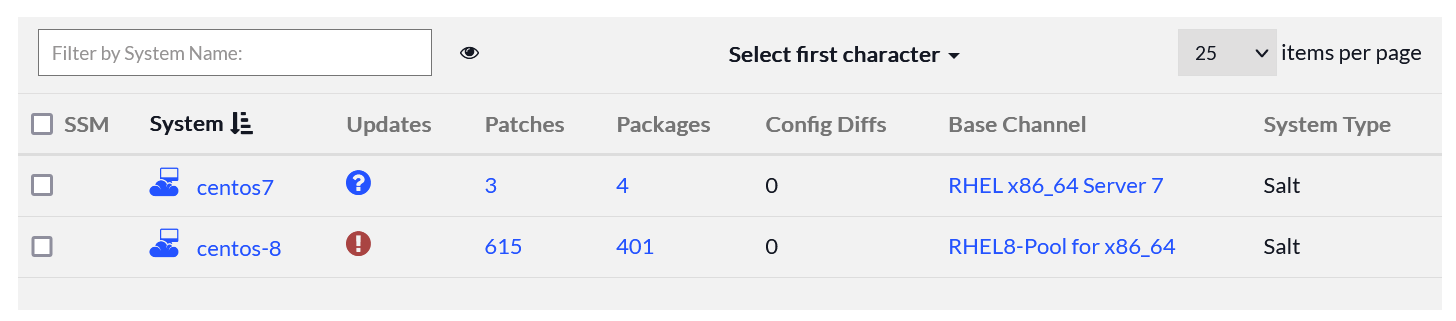
SUSEManager > Systems > Overview

image

4.5.2 透過 CLI 的方式檢查 Client 系統資訊

在 SUSE Manager Server 執行以下命令

$ spacecmd -q -- system_details centos-8

螢幕輸出 :

Name:          centos-8
System ID:     1000010027
UUID:          68c38167a8b849ae85ff1b5b802b9055
Locked:        False
Registered:    20231120T17:05:39
Last Checkin:  20231120T17:07:14
OSA Status:    unknown
Last Boot:     20231120T16:52:29
Contact Method:default

Hostname:      centos-8
IP Address:    x.x.x.x
Kernel:        4.18.0-348.el8.x86_64

Activation Keys
---------------
1-liberty-linux-8

Software Channels
-----------------
rhel8-pool-x86_64
  |-- res8-manager-tools-updates-x86_64
  |-- res8-manager-tools-pool-x86_64
  |-- res-8-updates-x86_64
  |-- res-cb-8-updates-x86_64
  |-- centos8-media-baseos
  |-- res-as-8-updates-x86_64
  |-- centos8-media-appstream

Entitlements
------------
salt_entitled

System Groups
-------------

4.6. 測試系統更新

在 SUSE Manager Client 執行以下命令

$ sudo yum update --nogpgcheck

螢幕輸出 :

... 以上省略
Transaction Summary
====================================================================
Install   14 Packages
Upgrade  398 Packages

Total size: 657 M
Is this ok [y/N]: y

... 中間省略

Installed:
  NetworkManager-initscripts-updown-1:1.40.16-4.el8_8.noarch ...

Complete!

4.6.1 TroubleShooting

  1. 遇到 Transaction check error
Error:
 Problem: package centos-linux-repos-8-3.el8.noarch conflicts with centos-release < 8.0-0.1905.0.10 provided by sles_es-release-8.8-0.9.el8.x86_64
  - cannot install the best update candidate for package centos-linux-repos-8-3.el8.noarch
  - cannot install the best update candidate for package centos-gpg-keys-1:8-3.el8.noarch
(try to add '--allowerasing' to command line to replace conflicting packages or '--skip-broken' to skip uninstallable packages or '--nobest' to use not only best candidate packages)

解決辦法 : 執行以下命令,刪除 centos-release 套件

$  sudo rpm -e --nodeps centos-linux-repos-8-3.el8.noarch centos-gpg-keys-1:8-3.el8.noarch

4.6.2 重啟系統

$ sudo reboot

4.6.3. 再次更新測試

$ sudo yum update

螢幕輸出應該如下 :

...以上省略
Dependencies resolved.
Nothing to do.
Complete!

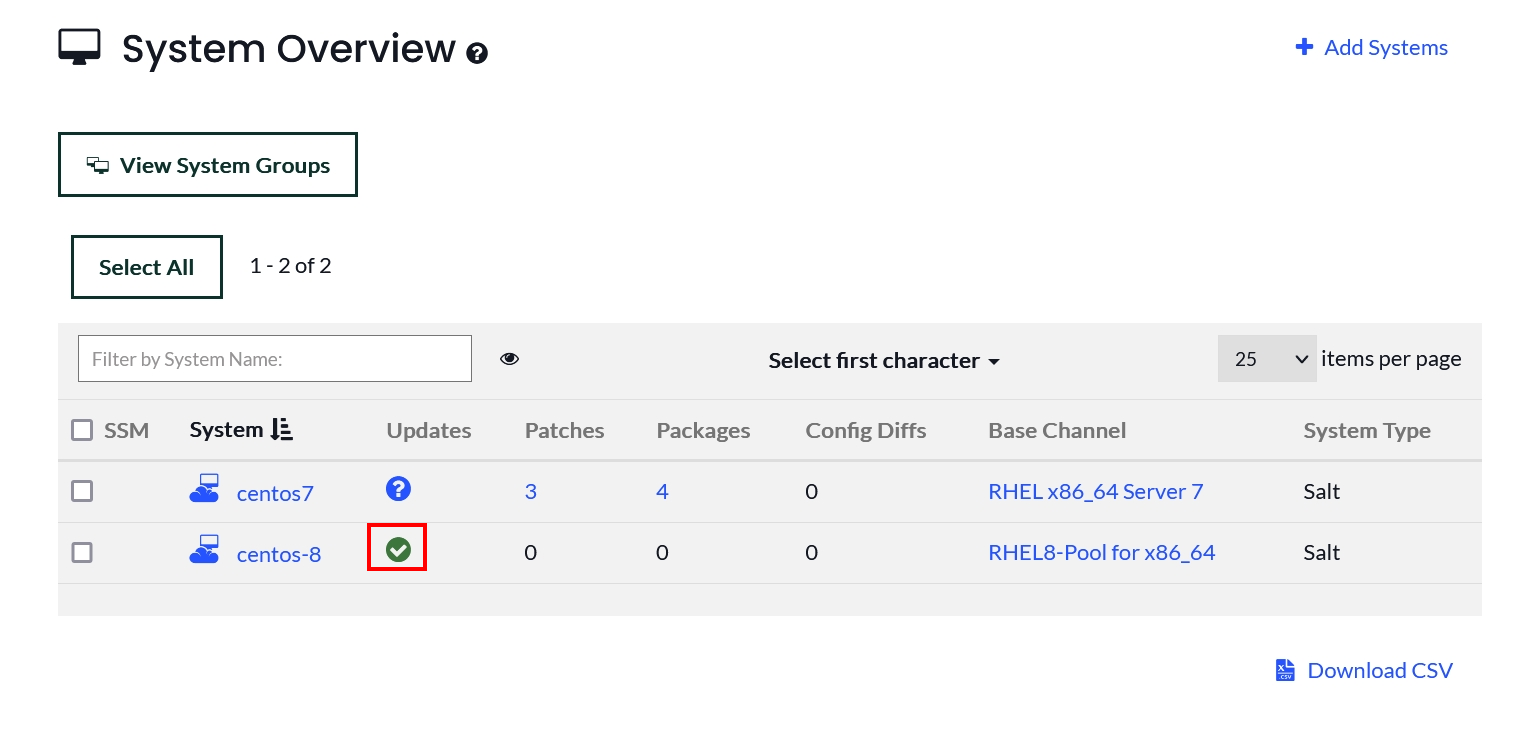
4.6.4. 在 SUSE Manager Server Web UI 檢視 Client 端的資訊

image

4.6.5. 檢查 Kernel 版本是否成功更新

$ uname -a

螢幕輸出應該如下 :

Linux centos-8 4.18.0-477.27.1.el8_8.x86_64 #1 SMP Thu Sep 21 11:21:00 UTC 2023 x86_64 x86_64 x86_64 GNU/Linux

5. 參考資料

SUSE Linux Enterprise Micro安裝 SUSE Manager 5.0